Introduction #
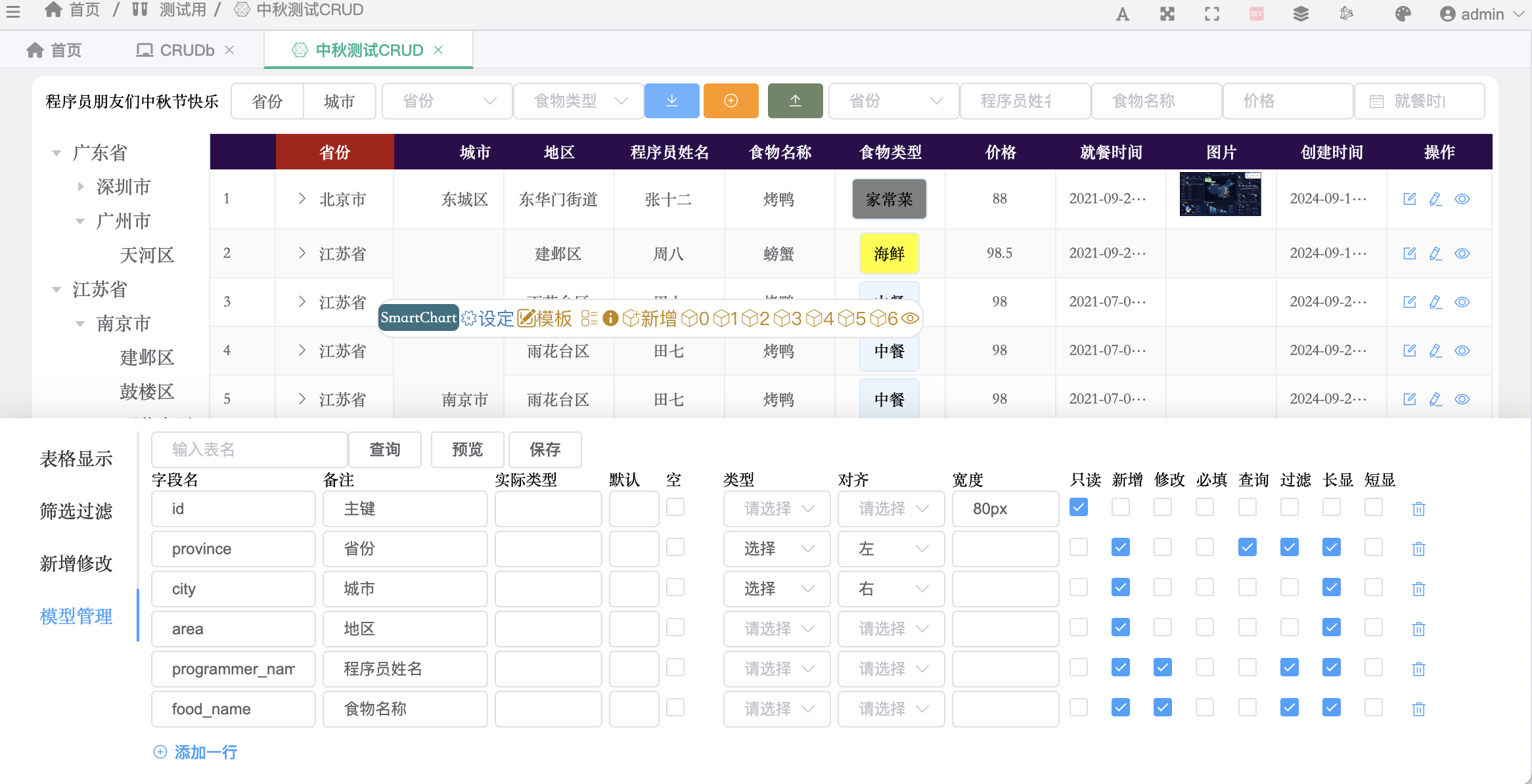
SmartChart’s CRUD template is a built-in low-code data management framework. Through a configuration panel in the dashboard, you can implement data CRUD, conditional queries, option linkage, backend pagination, Excel import, and more without writing tedious form code. CRUD is particularly suitable for enterprise-level data entry, work order management, approval systems, and other business scenarios.
CRUD core data convention:
Dataset #0handles query display,Dataset #1handles write operations (add/modify). Other numbered datasets are assigned by the configuration panel.
Use Cases #
- Develop personalized data entry, import, reporting, update, file upload, etc.
- Personalized table data display requirements, such as multi-dimensional tables, tree tables, filtering, backend pagination, etc.
- Develop enterprise management business systems
Watch the Videos Before Starting #
-
Click to enter dashboard development, click the right-side edit button
Create CRUD Scene #
- Click the SC icon in the bottom right, then click the top-left Settings
- In Settings, select CRUD template
- Open dataset #0, write your query SQL, and save
- Then click the SC icon in the bottom right, click CRUD Config to enter CRUD configuration
- Click Model Management, click Query to show all fields
- After configuration, click Preview
- If everything looks good, click Save. Note: some scenarios require save + refresh to take effect
Configuration Features #
- A list icon appears in the toolbar. Click it to enter the configuration interface
- For detailed configuration methods, see CRUD Common Development