Introduction #
“Published Dataset” is SmartChart’s dataset and chart reuse mechanism. Developed datasets + charts can be packaged as independent units for direct use in different dashboards, enabling “zero-code” level metric reuse, ideal for OEM and multi-tenant scenarios.
Use Cases #
- Dataset and chart reuse, drag and drop directly into dashboards after development
- Build metric systems for users, enabling 0-code functionality
- Ideal for OEM scenarios
Dataset Status Description:
- Published: Can be referenced as “Published Dataset” in other dashboards, cannot be modified in the target dashboard
- Offline/Draft: Only visible to developers for development and debugging
- Names starting with
_are automatically set to lazy-load mode (not queried immediately when opening dashboard)
Create Dataset #
- In the development menu -> Datasets -> Add -> Save
- In the dataset list -> Click the E icon -> Enter dataset editor
- After developing the data, click the dataset editor, save the dataset and click to enter chart development
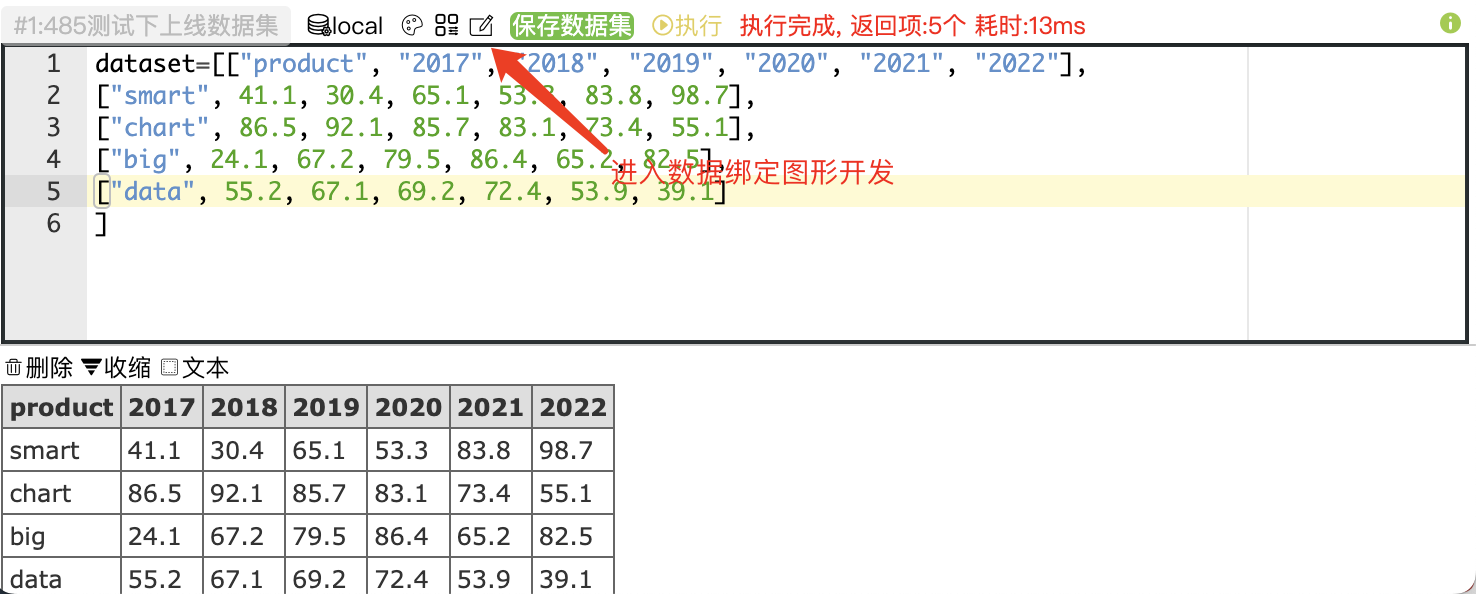
- Adjust the chart and save. Datasets created this way default to published status
- Add more datasets using the same method
Use Published Datasets in Dashboards #
- Enter the dashboard development interface
- Click “Add” -> “Published Dataset”, click the corresponding dataset
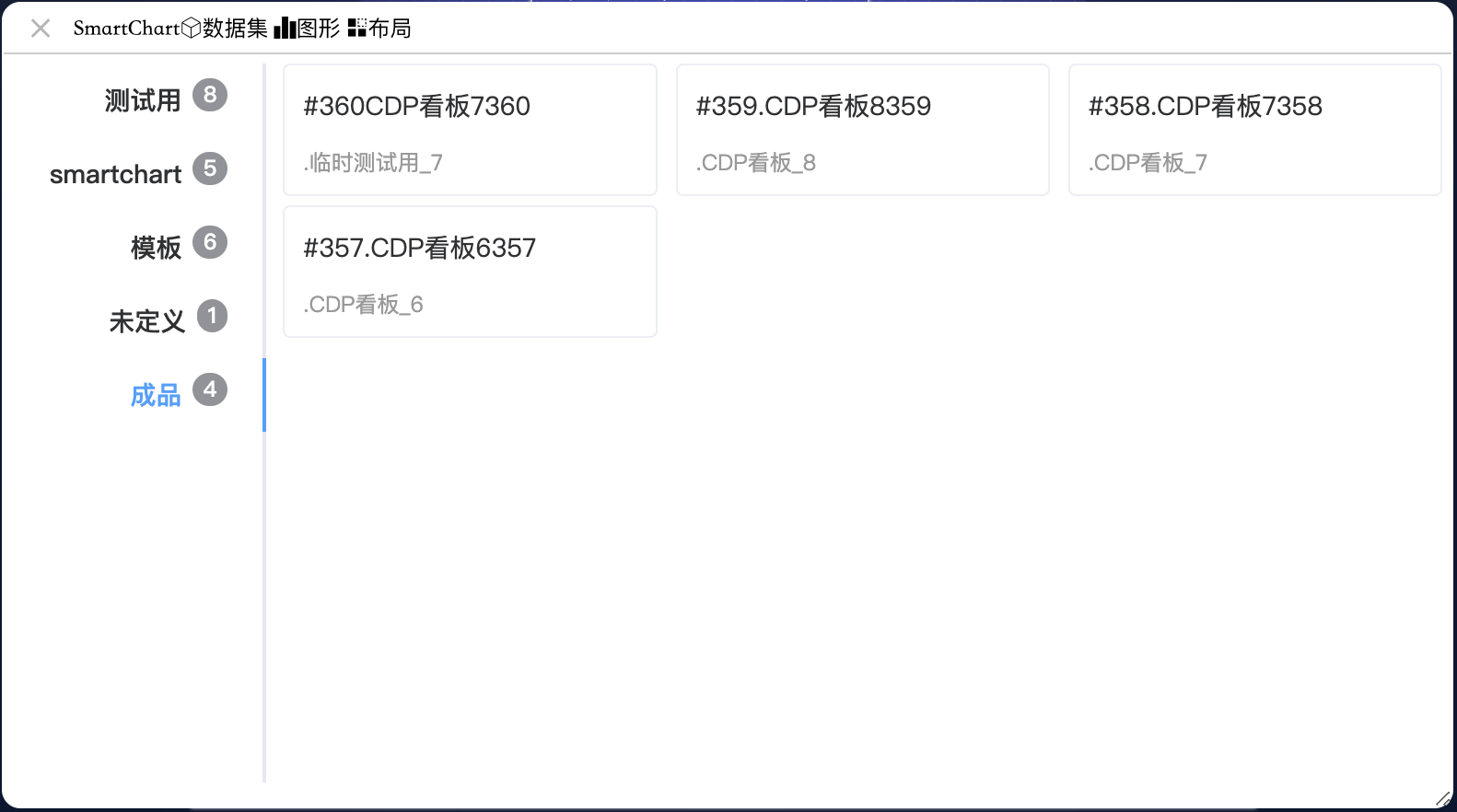
- The “Published Dataset” will appear in the dashboard
To make a dataset lazy-load when added, prefix the dataset name with ‘_’
Published Dataset Development in Dashboards #
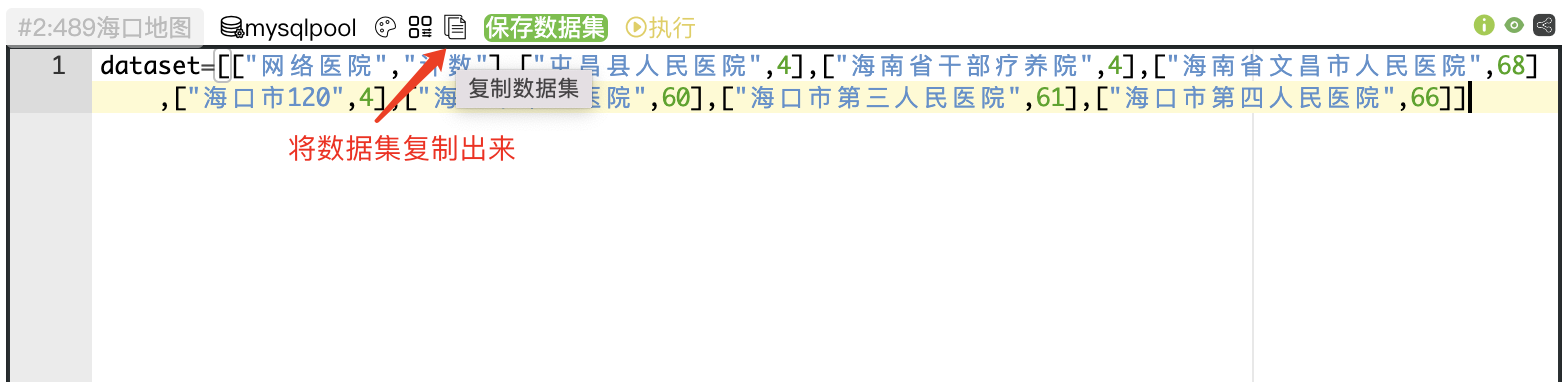
Published datasets cannot be modified in dashboards. To modify a dataset, copy it out as shown below