Introduction #
SmartChart’s permission system has two layers: Developer Permissions (controls who can access development mode) and Report View Permissions (controls who can see which dashboards). Proper permission assignment enables isolation between developers and read-only users, as well as differentiated access control for different user groups.
Developer Permissions #
Click the user management icon to control users’ development permissions.
New users have no development permissions by default and cannot see any development-related menus on the homepage.
You need to first create user roles, assign users to roles, and grant developer permissions:

Dashboard Report View Permissions #
You can manage user and group permissions in dashboard settings:
- In the dashboard settings page, you can assign edit permissions to specific users. Edit permission also implies view permission.
- In the dashboard settings page, you can assign view permissions to groups.
- Unpublished reports only appear in the edit page and can be previewed.
- Public reports, if no edit permission is assigned, do not appear in the edit page but are visible to everyone in the view page. You can share with everyone via URL: http://xxxxx:8000/echart?type=your-dashboard-name
- Mobile filtering: Use “All devices” and “Desktop only” options. When “All devices” is checked, both mobile and desktop show. When “All devices” is unchecked and “Desktop only” is unchecked, only mobile shows. Otherwise, only desktop shows.
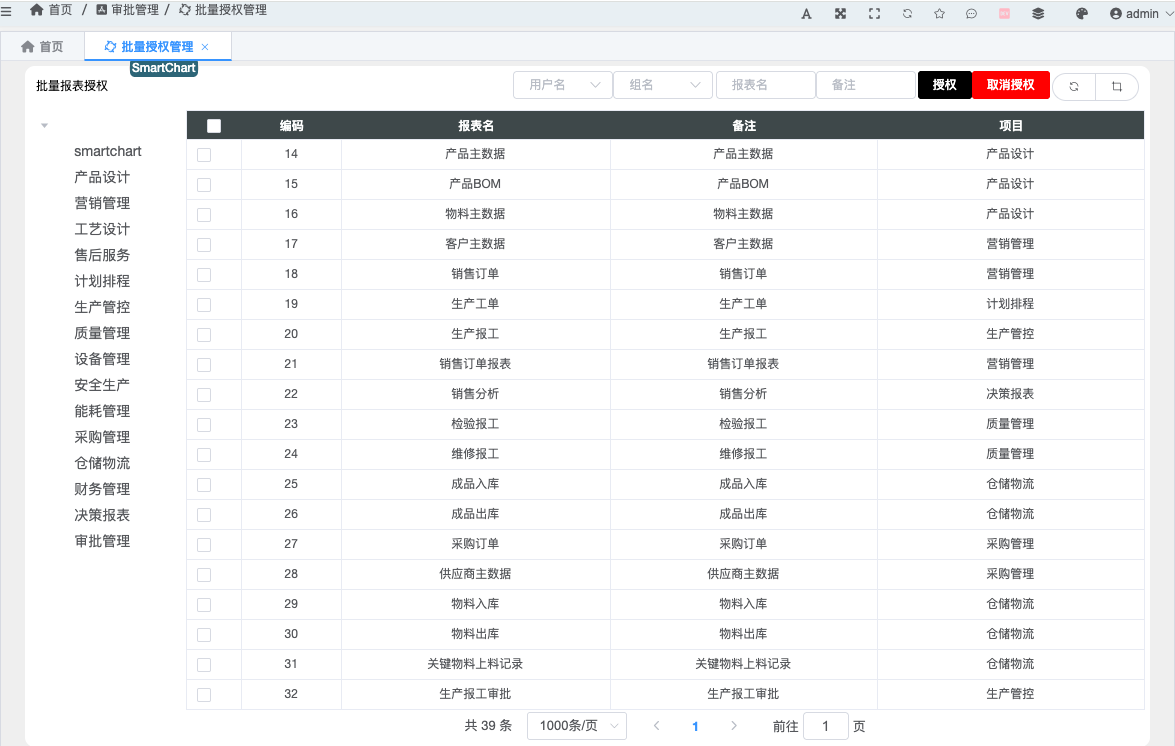
Batch Authorization #
Available with Pro edition purchase.
Permission Quick Reference #
| Permission Type | Purpose | Configuration Location |
|---|---|---|
| Developer Permission | Allows user to enter development mode | Admin -> User Management |
| Edit Permission (per user) | Allows specific user to edit dashboard | Dashboard Settings -> Permissions |
| View Permission (per group) | Allows specific user group to view dashboard | Dashboard Settings -> Permissions |
| Public Report | Visible to all (including unauthenticated users) | Dashboard Settings -> Public |
| Mobile Filter | Controls which device shows the dashboard | Dashboard Settings -> All/Desktop |
Best Practice: Assign “Developer Permission” to developers, and only assign “View Permission” by group to business viewers. No developer permission needed for viewers.