Introduction #
This document is a complete development guide for the SmartChart CRUD template, covering table creation, dataset configuration, conditional queries, option cascading, Excel import, master-detail writing, and backend pagination. All features are driven by the configuration panel — no form code required.
| Core Concept | Description |
|---|---|
| Dataset #0 | Query display (SELECT) |
| Dataset #1 | Write operation (INSERT/UPDATE) |
| Configuration Panel | All CRUD features are controlled via the config panel |
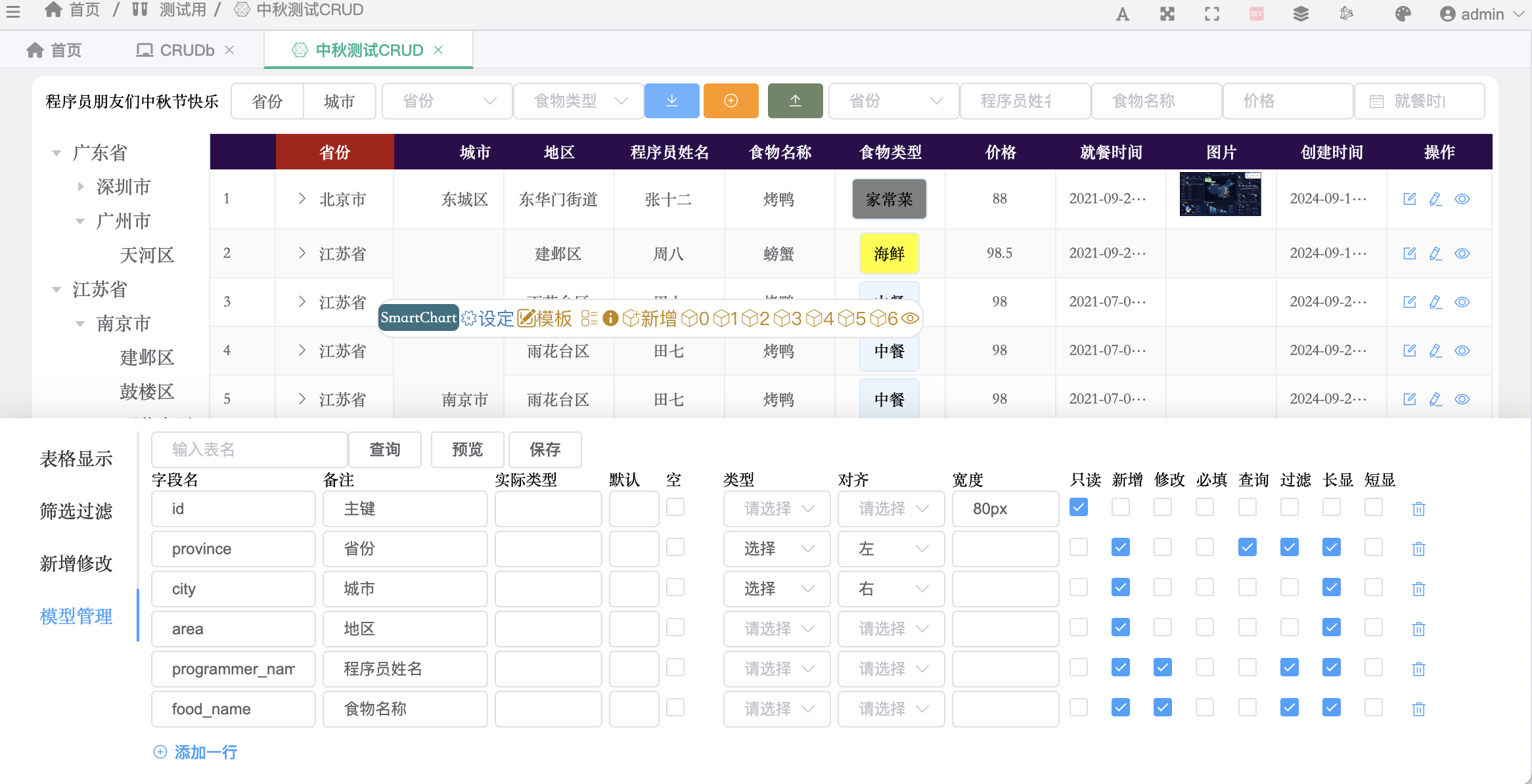
Table Creation #
MySQL is recommended as the target database (thoroughly tested, supports UI-based table creation). You can also create tables via SQL:
-- mysql
create table work_order(
    id int PRIMARY KEY auto_increment,
    tid int comment 'Tenant ID',
    work_order_no varchar(50) unique KEY,
    work_order_type varchar(50),
    work_order_qty int,
    status varchar(20) comment 'Status',
    create_time datetime DEFAULT CURRENT_TIMESTAMP,
    update_time datetime DEFAULT CURRENT_TIMESTAMP ON UPDATE CURRENT_TIMESTAMP,
    updater varchar(50) comment 'Updated by'
) comment 'Work Order';
It is recommended to always include: id, create_time, update_time, updater
For more table creation examples, see Table Reference
Display Table #
- In the dev menu, open dataset #0 editor, after creating the table, enter:
select * from work_order
- After saving the dataset, configure cache time to 0 in the data source menu → refresh settings
To control field display, use “Short Display” and “Long Display” in the config panel’s Model Management
Add and Edit #
Write Dataset #
- Create a new lazy-load dataset (e.g., #1), enter the table name in the dataset editor, e.g.,
work_order - Select the table name, click Data Source menu → Data Filing to auto-generate config items, then save
Without special settings, you can also configure “Add/Update” to use dataset #0 in the config panel → Data Management
Add Data Configuration #
- Return to the dashboard dev interface, click the list style icon on the toolbar to show the config panel below
- Click Model Management in the panel, click Query (no table name needed) to auto-load all fields
- Check the fields needed for add/modify/required (e.g., work_order_no, work_order_type, work_order_qty)
- Click Preview and Save. Click the plus icon in the top-left to add data
Edit Data #
- Enable the edit function in the config panel’s Add/Modify tab
- After saving, an edit icon appears on the right of each row
- Configurable fields follow the same method as “Add Data Configuration” above
Default add/modify is a dialog. To display inline, enable “Add Header” in the config panel When id is empty, modify becomes add — useful for special requirements You can add more edit or add configs in the operation column for additional input features
Data Filtering #
- Data filtering allows users to fuzzy-search any text in the loaded table data
- Enable by checking the corresponding fields in the config panel’s Model Management
- Supports fuzzy, >=, < and other filter operators
Enable global filter for full-table fuzzy AND/OR filtering Field header filter enables per-field dropdown filtering
Conditional Query #
- Conditional queries allow users to query the backend using select inputs
- First, check the corresponding fields in the config panel’s Model Management
- Then write the SQL in dataset #0, e.g., if “work_order_type” is a select field:
select * from work_order
where 1=1
/* and work_order_type = '$work_order_type' */
Tip: Query field names don’t have to come from existing fields — custom names work too For date fields, parameter names use suffixes like create_time_s and create_time_e for ranges
Option Implementation #
- Some fields need to be select fields for query or input
- First, set the field type to “Select” in the config panel’s Model Management
Custom Fixed Options #
- Switch to the “Filter” panel, enter the “Option Definition” editor:
{"work_order_type":[["A"],["B"]]}
- For more field configs:
{"work_order_type":[["A"],["B"]], "fieldX":[["X1","Name1"],["X2"]]}
Dynamic Options from Database #
- Create a new lazy-load dataset (e.g., #2) with:
-- Field names must match
select distinct work_order_type from work_order;
select xx as fieldX from xx_table
- Configure the option dataset ID (2) in the “Data Management” panel → “Options”
- Multiple fields can be queried — all display, but only the first field is used as the value
select city_code, city, province from xx_table
- For cascading options, configure the parent field name in “Data Management” → “Option Parameters”
Remote Search Options #
- For large option sets, use remote fuzzy search
- Create a lazy-load dataset (e.g., #6):
select work_order_no from work_order where work_order_no like '%$work_order_no%' limit 10
- Configure in “Data Management” → “Option DS Binding”:
work_order_no:6
Multi-level Options #
- For cascading city selection, field name “city”:
select province as city, city as city1 from xxxx
Auto-fill on Edit #
- Set “Bring-out DS Binding” in “Data Management”, e.g.:
work_order_no:3 - Write the query in dataset #3:
select work_order_type, work_order_qty from work_order
where work_order_no = '$work_order_no'
- This auto-fills work_order_type and work_order_qty when work_order_no is selected
For passing additional parameters, configure in “Data Management” → “Association Parameters”, e.g.:
{"work_order_no":["work_order_type","updater"]}
Variable Dimensions #
- Set variable dimensions in the Filter page, e.g.:
province,city - Use
_prefix for parameters in the query:
select
customer,
/* $_province, */
/* $_city, */
sum(qty) as qty
from programmers_food
group by
customer,
/* $_province, */
/* $_city */
Backend Pagination #
- Enable backend pagination in settings
- Add total count query and limit/offset parameters in dataset #0:
select count(1)  from programmers_food
where 1=1 /* and province = '$province' */;

select * from programmers_food
where 1=1 /* and province = '$province' */
limit $limit /* offset $offset */
Table Expand (Tree) #
- Set expand dataset (e.g., #4) in “Data Management”
- Write the query — parameters are the first column name and value of the clicked row:
select * from work_order where id = '$id'
- For multi-level expand, include a
hasChildfield:
select t1.child_code as code, t1.name, hasChildren from
(select * from product_bom where parent_code='$code') t1
left join
(select parent_code, count(1) as hasChildren from product_bom group by parent_code) t3 on t3.parent_code = t1.child_code
Excel Import #
- Configure the write dataset (e.g., #1) in “Data Management” → “Import”:
dataset={
    "table":"work_order(work_order_no,work_order_type,work_order_qty,updater)",
    "id":"id",
    "fDict":{},
    "sFields":[],
    "autoDict":{"updater":"$username"},
    "preSql":[],
    "postSql":[]
}
Note: Excel doesn’t need the updater field — it’s auto-filled via the dataset config
Upload Images/Files #
- Set field type to image or file in the config panel’s Model Management
- For cloud storage (Ali OSS, Tencent COS), configure the storage name
Master-Detail Writing #
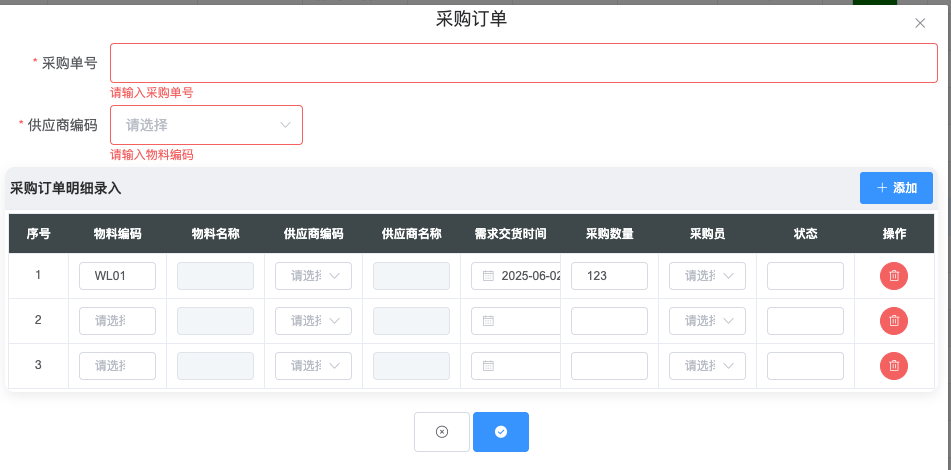
- Recommended child table fields:
id,fid(parent ID) - Set child table add/modify fields in the config panel
- Add a
childparameter:
dataset={
    "table":"main_table",
    "id":"id",
    "child":{
        "table": "child_table",
        "fFields":[]
    }
}
A field named
fidis auto-submitted with the parent’s id value. UsefDictto remap:"fDict": {"fid": "parent_code"}Use"fFields":["parent_field",..]to bring more parent fields into the child table
Data Change Logging #
Add to the edit dataset config:
dataset={
    "table":"table_name",
    "logTable":"log_table_name",
    "logFields":"a,b",
    "autoDict":{"updater":"$username"}
}
Processing Table Data #
- Enter dataset #0’s chart editor and replace the code with:
data0=__dataset__;
- For further processing, add logic and assign the result to
data0:
data0=__dataset__;
ds_refresh(3);
data0 = ds_leftjoin(data0, data3);
data0 = ds_pivot(data0,indexs=[1,0],column=2,value=3);
Operation Column Control #
Control per-row action buttons by adding an “action” field to the query:
select *, case when tid!=0 then 'ED' else 'Copy' end as action from demo_data
Multi-Tab #
Enable multi-tab in the table display config page — each tab has independent configuration.